
Fathom Video SAML SSO Integration
Fathom Video SAML SSO integration allows users to access Fathom Video using a single login. It works through SAML-based authentication, which connects Fathom Video with CyberArk Identity securely. This removes the need to remember multiple passwords and improves login speed.
This integration helps organizations manage user access in a centralized way. It also improves security by using identity provider verification instead of separate application logins.
Single Sign-On (SSO) ensures smooth authentication across platforms
SAML protocol is used for secure data exchange between systems
OpenID Connect SSO Explained: Secure Authentication for Modern Applications
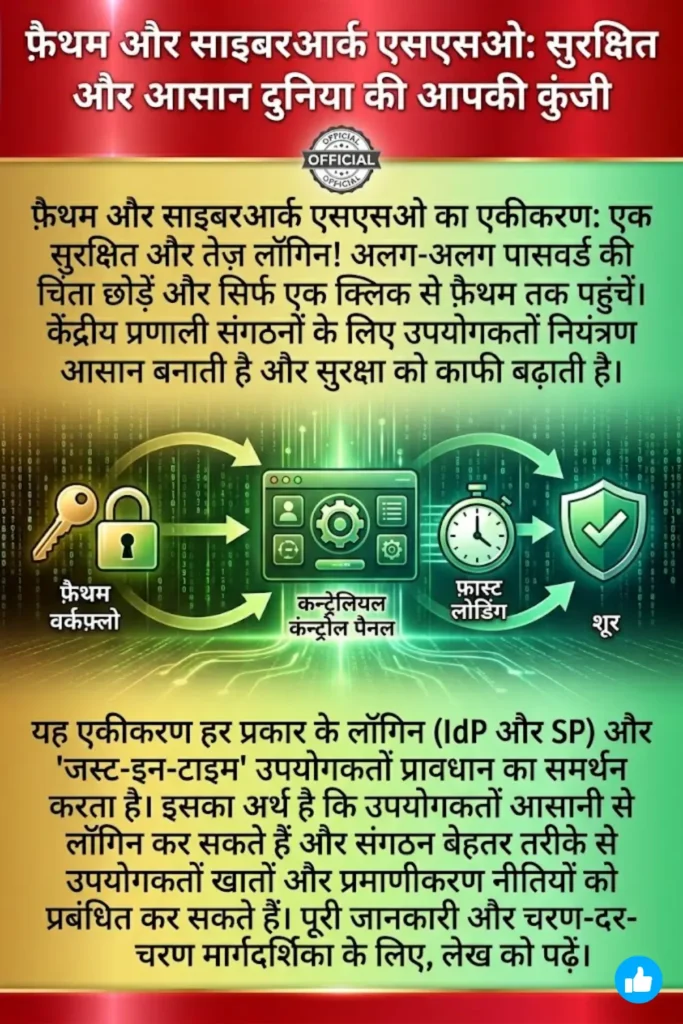
Supported Features in Fathom Video SAML SSO Integration
The Fathom Video SAML SSO integration supports both IdP-initiated and SP-initiated login flows. It also supports Just-in-Time (JIT) provisioning, which automatically creates user accounts during first login if needed.
These features make access management easier for IT teams. Users get faster access while administrators maintain control over authentication policies.
Supports IdP-initiated login from CyberArk portal
Supports SP-initiated login from Fathom Video website
Includes Just-in-Time provisioning for new users
SSO API Integration Guide: Secure, Fast & Scalable Single Sign-On Setup
Prerequisites for Fathom Video SAML SSO Integration
Before starting configuration, certain requirements must be met. The organization must have an active Fathom Video account with admin access. Users must already exist in the CyberArk Identity system.
These steps ensure that the integration process runs smoothly without errors. Proper preparation reduces setup issues during SSO configuration.
Active Fathom Video admin account is required
Users must be added in CyberArk Identity
Admin rights are needed for configuration access
Step-by-Step Configuration of Fathom Video SAML SSO Integration in CyberArk Identity
Step 1 – Add Fathom Video Web App Template
The first step is adding the application template in CyberArk Identity. Admins must go to the Web Apps section and add Fathom Video from the available templates.
After adding it, the settings page opens for further configuration. This is where the SAML setup process begins.
SSO Implementation for Businesses: A Complete Guide to Secure and Seamless Access
Search and add Fathom Video application template
Open settings page for configuration
Prepare system for SSO setup
Step 2 – Configure Trust Settings
In trust settings, Identity Provider details must be configured manually. The system provides important values like Entity ID, signing certificate, and login URL.
These values are copied and used in Fathom Video SSO settings. Then metadata from Fathom Video is loaded into CyberArk for connection setup.
Copy IdP Entity ID and signing certificate
Load metadata URL from Fathom Video
Save configuration after validation
Table: Trust Configuration Data Mapping
| Field Name | Source |
|---|---|
| Entity ID | CyberArk Identity |
| Signing Certificate | CyberArk Identity |
| Metadata URL | Fathom Video |
Top SSO Solutions for Small Businesses in 2026: Complete Comparison & Review
Step 3 – Configure SAML Response Attributes
SAML attributes define what user information is shared during login. These attributes must match exactly between CyberArk and Fathom Video.
Common attributes include email, first name, and last name. These are mapped to CyberArk user profile fields.
Map email to LoginUser.Email
Map first name and last name correctly
Ensure case-sensitive accuracy
Step 4 – Assign Permissions for User Access
Permissions control who can access Fathom Video through SSO. Admins can assign access to users, groups, or roles.
Default settings may include auto deployment, but these can be changed based on policy needs. This helps control application visibility.
Assign users, groups, or roles
Set View and Run permissions
Control auto deployment settings
AI-Powered SSO Authentication 2026: The Smart Login Revolution Replacing Passwords Forever
Table: Permission Types
| Permission Type | Purpose |
|---|---|
| View | Allows access visibility |
| Run | Enables application launch |
| Auto Deploy | Adds app to user portal automatically |
Step 5 – Review and Finalize Configuration
Before finishing, all settings must be reviewed carefully. Admins should check user assignments, trust configuration, and attribute mapping.
Once verified, the configuration is saved. This ensures that the SSO setup is active and ready for testing.
Verify all user and role assignments
Check SAML configuration accuracy
Save final setup changes
Configuring Fathom Video for SAML SSO
After CyberArk setup, Fathom Video must also be configured for SSO. This step usually requires support from the Fathom Video technical team.
They help ensure that Service Provider settings match Identity Provider details. This completes the trust relationship between both systems.
Contact Fathom Video support for setup
Align Service Provider configuration
Ensure secure connection setup
Future of SSO Authentication 2026: The Rise of Passwordless, AI-Driven Identity Security
Testing Fathom Video SAML SSO Integration
Testing ensures that SSO works correctly for all users. Both IdP-initiated and SP-initiated flows should be checked.
This helps confirm that login redirection and authentication are working properly.
IdP-Initiated Testing
Users log in through CyberArk Identity portal. They click the Fathom Video application tile and get signed in automatically.
Login through CyberArk portal
Launch Fathom Video app
Verify automatic authentication
SP-Initiated Testing
Users start login from Fathom Video website. They select identity provider login and are redirected for authentication.
Login from Fathom Video URL
Redirect to Identity Provider
Return after successful login
SSO Hacked: What Really Happens Next in Your Digital Identity
Benefits of Fathom Video SAML SSO Integration
This integration improves both security and user experience. It reduces password-related issues and simplifies access management.
Organizations can control all user authentication from a single platform. This makes IT operations more efficient.
Simplifies user login process
Enhances security with centralized control
Reduces password management issues
Conclusion
Fathom Video SAML SSO integration with CyberArk Identity provides a secure and efficient login system. It allows centralized access control and supports modern authentication standards.
Proper configuration ensures smooth user experience and strong security. Testing confirms that both login methods work correctly.
FAQs
What is Fathom Video SAML SSO integration?
It is a secure login system that connects Fathom Video with CyberArk Identity using SAML authentication.
Which features are supported in this integration?
It supports IdP login, SP login, and Just-in-Time user provisioning for automatic access.
You Can Also Read: Rajasthan SSO Portal Made Simple: Step-by-Step Guide to Create and Use Your ID